Showing posts with label Tricks. Show all posts

Friday, September 27, 2013

How To Change Inches To Centimeters In wORD 2007, Word 2010

By default in Microsoft Word 2010, width, height, and even paper size is shown in inches. For some people this is an obscure measurement that is hardly ever used. If you’d rather display in centimeters instead, let’s take a look at how we can change the default measurement unit from inches to centimeters.

Click on the File Menu and select  Options:

Now click on the Advanced section:

Scroll down to the Display section and change the the option to display measurements in to centimeters, by selecting it from the drop-down menu:
If you use the rulers you will immediately notice a difference:


Friday, September 13, 2013

How to block ads in website. Remove ads from website.

सफ्टवेयर राखेर पनि वेबसाइट र मेसेन्जरहरुमा आउने विज्ञापन रोक्न सकिन्छ 


इन्टरनेट चलाउनेहरुलाई विभिन्न वेबसाइट खोल्दा आउने विज्ञापनहरुले हैरान नै पारेको हुनुपर्छ। कम्प्युटर तथा मोबाइलको स्क्रिन नै ढाक्ने गरेर ढकमक्क देखिने विज्ञापनहरुले वेबसाइटमा रहेका सामग्री हेर्न मात्र मुस्किल पार्दैनन् तल माथि र दायाँ बायाँ एकोनास हल्लीरहने विज्ञापनले ध्यान पनि भंग गराउँछन्। यती मात्र होइन वेबसाइट हेर्नेहरुले गल्तीले क्लिक गरोस् भनेर नै सामग्रीहरुको लिंकमा टाँसेरै विज्ञापन राख्नेहरु पनि धेरै छन्। जसले गर्दा तपाइँ आफूले हेर्न चाहेको विषय भन्दा फरक लिंक र ठाउँमा पुग्नुहुन्छ। यसले दिने हैरानी त छँदैछ यस्ता विज्ञापनले तपाइँको इन्टरनेटको गती सुस्तो बनाएर हैरान बनाउँछन्। वेबसाइटहरु धेरै ढिलो खुल्दा तपाइँलाई रिस उठ्नु पनि स्वभाविक नै हो। कतिपय नेपाली वेबसाइटमा छ ठूला ठूला आकारका र पाठकको आँखालाई ख्यालै नगरी डिजाइन गरिएका भद्दा विज्ञापनको संख्या पनि धेरै नै हुन्छ। जसले आँखालाई असजिलो त पार्छ नै इन्टरनेटको गती पनि सुस्तो हुन्छ। भोल्युम बेस इन्टरनेट लिनेलाई त त्यस्ता विज्ञापनले अनावश्यक धेरै पैसा पनि खर्च गराउँछ।

इन्टरनेट प्रयोगका क्रममा दैनिक साक्षात्कार हुने यस्ता विज्ञापन र तिनले दिने हैरानीबाट जोगिन प्रमुख इन्टरनेट ब्राउजरहरुमा यस्ता विज्ञापन रोक्ने एडअन्स (सफ्टवेयर)हरु पनि विकास भएका छन्। जसले तपाइँलाई त्यस्ता विज्ञापन जसले फोकटमा पैसा खान्छन् र हैरानी दिन्छन् तीनलाई सँधैका लागि बाइबाइ गर्न सक्नुहुन्छ सित्तैमा। प्रमुख पाँच इन्टरनेट ब्राउजरमा यस्ता खालका एडअन एप राख्न सक्नुहुन्छ।


Install ABP Ad Blocker


Friday, August 30, 2013

What is Hibernate? What is hiberfil.sys and How Do I Delete It?

hiberfil.sys : is a file used by windows when you choose to 'Hibernate' the system. You can  delete it, if you won't use the Hibernate option.

pagefile.sys : is the file used by windows to be your Page File, or your virtual memory swap. If you have 1 GB of RAM and want to use 2 GB as your memory, windows will create a 1 GB virtual memory in your HD and use it as needed.

Can you delete them? Yes, but not simply going to the Windows Explorer and removing them. Take a look at the provided links, or do some research about your windows version, to know how to delete them.
Notice that simply deleting them is not enough: you'll have to disable the hibernate option and the virtual memory use of your windows.

Hiberfil.sys, as the name suggests, is the file to which Windows saves the snap shot data. Thus, the file is always equal in size to the total amount of available RAM on the computer.
To remove the file and disable hibernation.
1.Open a command prompt with administrative privileges.
2.Enter “powercfg.exe -h off”.

What is hiberfil.sys and How Do I Delete It?

You’re no doubt reading this article because there’s a gigantic hiberfil.sys file sitting in the root of your drive, and you want to get rid of it to free up some space… but you can’t!
Luckily, you actually can delete it, and today we’ll show you how.
image
The more memory you have in your PC, the bigger the file will be.

So What is hiberfil.sys Anyway?
Windows has two power management modes that you can choose from: one is Sleep Mode, which keeps the PC running in a low power state so you can almost instantly get back to what you were working on. The other is Hibernate mode, which completely writes the memory out to the hard drive, and then powers the PC down entirely, so you can even take the battery out, put it back in, start back up, and be right back where you were.

Hibernate mode uses the hiberfil.sys file to store the the current state (memory) of the PC, and since it’s managed by Windows, you can’t delete the file.

So if you never use it, and want to disable Hibernate mode, keep reading. Personally I stick with Sleep Mode the vast majority of the time, but I do use Hibernate quite often.

Disable Hibernate (and Delete hiberfil.sys) in Windows 7 or Vista
You’ll need to open an administrator mode command prompt by right-clicking on the command prompt in the start menu, and then choosing Run as Administrator. Once you’re there, type in the following command:
powercfg -h off

You should immediately notice that the Hibernate option is gone from the Shut down menu.

You’ll also notice that the file is magically gone!


Disabling Hibernate Mode in Windows XP
It’s a lot easier in Windows XP to get rid of Hibernate mode… in fact, we’ve already covered it before, but we’ll cover it again. Just head into Control Panel –> Power Options, and then find the Hibernate tab.

Uncheck the box, reboot your PC, and then you can delete the hiberfil.sys file

Thursday, April 11, 2013

Titling your Facebook Post as you need

You can change the title tag and descriptions of any post you share on Facebook to suit your needs (Especially useful for SEO purposes). This will ensure you’re getting the right message off to your friends.

1. After you pop the link into your status box, you can hover over the title of the post. (Highlighted in yellow)


2. Click on the title and it turns into an editable box.

Change title on Facebook share

3. Enter your desired text and press enter.

Facebook Title Changing

4. Customize the description using the same steps.

Customize Facebook Descriptions

Facebook description customizing

Tuesday, April 9, 2013

Hidden Themes In Windows 7

Windows 7 by default has only few themes available for customization. People who are not satisfied with these in build themes can get few more themes for Windows 7 which are actually hidden. These themes are available for certain regional countries such as Australia, Canada, Great Britain, United States and South Africa. These themes can be revealed and used by the following steps.


1. Open Windows Explorer and click Organize

2. Select Folder and Search Options and navigate to the View tab.

3. Select Show hidden files, folders and drivers and uncheck Hide protected operating system files (Recommended). Click Yes, if prompted for confirmation.

4. Click OK and now browse to the folder: Windows\Globalization\MCT

5. There are five folders here with the name with format MCT-XX (where XX is AU, CA, GB, US, or ZA) which represents globalization settings for each region. Go into the folder that you want to activate its theme.
Note that AU, CA and ZA regions have the same themes.

6. Open the Theme folder inside the selected region folder.

7. Double click on the XX.theme file to apply the theme to the Windows 7 desktop system. Once a theme is executed and activated, the theme will be available and saved into Personalization options, so that user can select this theme directly from the personalization settings.

8. Now to go to Folder Options to reverse the first 5 steps to hide the hidden and protected system files and folders again.


Now when you open the themes settings, you can see the hidden themes activated.


Monday, April 8, 2013

Download Windows 7 to Windows 8 Transformation Pack – 8 Skin Pack for 7

Download Windows 7 to Windows 8 Transformation Pack – 8 Skin Pack for 7 .
▶ It has visual styles like the leaked screenshots and third party apps of Windows 8.
▶ Create a system restore point to revert the changes if in case you surface problems with this skin pack.


>>Download Windows 8 Skin Pack for Windows 7 (32-bit)
>>Download Windows 8 Skin Pack for Windows 7 (64-bit)


The blogosphere is buzzing with the leaked Windows 8 build 7850 and if you were disappointed that you missed it, then I have some great news for you. You can now get the all new eye candy Windows 8 features on your Windows 7 with “8 Skin Pack for 7“.

It has visual styles like the leaked screenshots and third party apps that have been developed to provide users with the expected Windows 8 features.

What all you get with “8 Skin Pack for 7″ ?

    X->    The new “betta” fish boot screen.
    X->    A brand new login screen.
    X->    New start screen.
    X->    New Windows 8 logo.
    X->    New start button.
    X->    Custom metro visual style.
    X->    New desktop backgrounds.
    X->    Taskbar user picture tile.
    X->    Metro caption buttons (minimize, maximize and close buttons).
    X->    New window borders.
    X->    New shell style.
    X->    New installer.
    X->    New add mosaic feature.
    X->    New about Windows box.
    X->    Metro navigation buttons
    X->    Supported on both 32bit and 64bit OS and lots more.


    Who is the Creator of this Transformation Pack ?

    The creator of this transformation pack is Hamed Danger. He had also designed a theme pack which transform your Windows 7 to Mac OS X 10.7 Lion and a theme pack that transforms Windows 7 to Ubuntu 11.04 .


    Before applying this transformation pack..

    Create a system restore point to revert the changes if in case you surface problems with the skin pack.


    Display Blogger Labels In A Drop Down Menu Gadget

    A labels widget displays your post labels. Each label is linked to a page containing posts which fall under that label. Usually as your posts increases, so will your labels. If you don’t limit them, sooner or later your labels widget will take over your sidebar :)

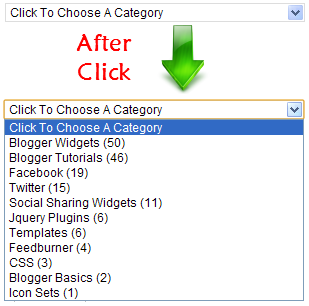
    Regain control of your sidebar, shrink the widget -by converting it into a dropdown (or is it a pulldown?) menu. Your labels widget size will be reduced to just one line! And only expand into a full list when you click it.


    Before applying this hack, you must already have a Label widget installed.
    If you don’t have one, go to Design > Page Elements and add it.
    Now let’s make the dropdown:

    How To Create Dropdown Menu For Labels Widget

    • 1. Go to Dashboard > Design > Edit HTML.
    • 2. Back up your template.
    • 3. Make sure you DO NOT tick the Expand Widget Templates checkbox.
    • 4. Look for the following lines in your HTML code:
    <b:widget id='Label1' locked='false' 
    title='Labels' type='Label'/>

    • 5. Replace that line with this code:
    <b:widget id='Label1' locked='false' 
    title='Categories' type='Label'> 
    <b:includable id='main'> 
    <b:if cond='data:title'> 
    <h2><data:title/></h2> 
    </b:if> 
    <div class='widget-content'> 
    <select style='width:100%' 
    onchange='location=this.options[this.selectedIndex].value;'> 
    <option>Click To Choose a Category</option> 
    <b:loop values='data:labels' var='label'> 
    <option expr:value='data:label.url'><data:label.name/> 
    (<data:label.count/>) 
    </option> 
    </b:loop> 
    </select> 
    <b:include name='quickedit'/> 
    </div> 
    </b:includable> 
    </b:widget>
    • 6. If you want change the width of the drop down menu then change this value width:100% to any percentage, or pixel (px).
    • 7. To change the phrase “Click To Choose a Category” then find this line Click To Choose a Category  and replace it with your preferred phrase.
    • 8. If you do not want to show post count at the end of each label then delete this line (<data:label.count/>) .

    Sunday, April 7, 2013

    कम्प्युटरमा भाइरस पसेको कसरी थाहा पाउने ? कसरी बच्ने ?

    हामी अहिले साइबर युद्धको युगमा छौँ । तपाइँलाई थाहै नदिइकन तपाइँको कम्प्युटर भाइरसद्धारा संक्रमित हुनसक्छ र अदृश्य ठाउँबाट कुनै ह्याकरले तपाइँको कम्प्युटर नियन्त्रण गरिरहेको हुनसक्छ । तपाइँको ल्यापटपका डाटाहरु साइबर अपराधीहरुले चोर्ने खतरा पनि हुन्छ ।

    त्यसैले आफ्नो पिसिलाई ह्याक हुनबाट वा भाइरसबाट जोगाउन सचेत हुनुपर्छ । कम्प्युटरमा भाइरस घुसेको थाहा पाउने केही लक्षण निम्न छन् :
    • 1. पिसीको गति निकै स्लो हुन्छ । कम्प्युटरमा धेरै डाटा लोड नहुँदा पनि गति निकै स्लो हुन थाल्छ ।
    • 2. इन्टरनेट ब्राउजर आफै खुल्ने वा पपअप विन्डो आफै खुल्ने भयो भने पनि भाइरस छिरेको लक्षण हो । ब्राउजर बन्द गर्दा पनि बन्द हुनेबित्तिकै आफै खुल्ने लक्षण पनि भाइरस संक्रमणको हुनसक्छ ।
    • 3. कम्प्युटरमा सेक्युरिटी विज्ञापन आफै देखिनु, ल्यापटप संक्रमित भएको चेतावनी जारी हुनु तथा सेक्युरिटी सफ्टवेयर डाउनलोड गर्न आफै सूचना पप अप हुन्छ ।
    • 4. इन्टरनेट खोल्दा आफुले अर्कै बेवसाइट लगअन गरेको बेला अर्कैमा रिडाइरेक्ट हुनु ।
    • 5. अनावश्यक वा चिन्दै नचिनेका वा अप्रासंगिक इमेल आउनु, फेसबुक वालमा आफुले पोष्ट गर्दै नगरेका कुराहरु पोष्ट हुनु ।

    कसरी जोगिने ?

    • 1. पेनड्राइभ ल्यापटपमा घुसाउँदा सुरुमा भाइरस स्क्यान गरिसकेपछि मात्र खोल्नुहोस् ।
    • 2. तपाइँको इमेलमा आएको वा अरु कुनै साइट खोल्दा ध्यान दिनुहोस् । यदि उक्त वेबसाइट आधिकारिक वा सुरक्षित हो भन्नेमा तपाइँ ढुक्क हुनुहुन्न भने त्यसमा क्लिक नगर्नुहोस् ।
    • 3. इमेल तथा सोसल नेटवर्कमा पठाइएका विभिन्न खाले बधाइ तथा शुभकामना लगायतका शंकास्पद इमेल खोल्ने तथा त्यसमा दिइएका लिंक ओपन गर्ने गर्नुहुँदैन । त्यस्ता शंकास्पद इमेललाई सोझै डिलिट गर्नुहोस् ।

    लिंक सुरक्षित हो वा भाइरस जन्य हो भन्ने कुरा कसरी थाहा पाउने ?

    • 1. तपाइँलाई पठाइएको वा लगअन गर्न खोजेको साइटको लिंक युआरएल निम्न लिंक safeweb.norton.com र siteadvisor.com मा गएर टाइप गर्नुहोस त्यसपछि त्यो साइट सुरक्षित हो की भाइरसजन्य हो थाहा हुन्छ ।

    Image Zoom Effect Eample

    A camera shot that changes smoothly from a long shot to a close-up or vice versa.

    A zoom lens is a mechanical assembly of lens elements for which the focal length (and thus angle of view) can be varied, as opposed to a fixed focal length (FFL) lens (see prime lens).

    A true zoom lens, also called a parfocal lens, is one that maintains focus when its focal length changes. A lens that loses focus during zooming is more properly called a varifocal lens.


    Add Zoom Hover Effect To Blogger Images, Zoom Effect on Image for Website

    This is pure CSS tutorial,it will help you to make your blog attractive,if you are running photography blog then this effect is best for you.

    Whenever any one mouse-over the image the image will automatically grow in size and after removing mouse it will come back in its own position.


    If you want to add this effect to your blog then follow below steps-

    Adding CSS Code

    Paste the following Css code above ]]></b:skin> in your blog html code section.If you don't know how to paste Css then go to Template>Edit HTML>And there find (ctrl + f) ]]></b:skin> and paste following code above it.


    .hovergallery img{
    -webkit-transform:scale(0.8); /*Webkit: Scale down image to 0.8x original size*/
    -moz-transform:scale(0.8); /*Mozilla scale version*/
    -o-transform:scale(0.8); /*Opera scale version*/
    -webkit-transition-duration: 0.5s; /*Webkit: Animation duration*/
    -moz-transition-duration: 0.5s; /*Mozilla duration version*/
    -o-transition-duration: 0.5s; /*Opera duration version*/
    }
    .hovergallery img:hover{
    -webkit-transform:scale(1.1); /*Webkit: Scale up image to 1.2x original size*/
    -moz-transform:scale(1.1); /*Mozilla scale version*/
    -o-transform:scale(1.1); /*Opera scale version*/
    opacity: 1;
    }

    Now we need to add image,select image in blogger where you want to add this effect and follow below steps-

    <a class="hovergallery" href="Image-URL"><img src=" Image-URL " /></a>

    Replace Image-URL with your image in which you want zoom hover effect.

    After Adding Image URL place the code where you want to display this image.

    If You Are Facing Any Problem Feel Free To Ask By Commenting below.

    Friday, April 5, 2013

    4 Excellent useful Windows 7 tricks

    You know that feeling you get when your friends or family see you do something on your computer that they've never seen before? If you’ve had this experience, you know that “world's coolest power-user” feeling. But if you haven’t, start here. Knowledge is power!
    Read these six tips for Windows 7, Windows Vista, and Windows XP that will keep you schoolin' your friends and family.

    1. Don't just maximize your windows—go full screen

    When you need a really big window for viewing photos and videos, don't just maximize it: go full screen! This tip works great for viewing photos and videos at maximum size in Windows Explorer or Windows Media Player, utilizing screen space usually occupied by the header at the top of the screen and the taskbar at the bottom. Here’s how:

    Open any photo in Windows Explorer, or open a photo or video clip in Windows Media Player. Do one of the following:

    1. In Windows 7 and Windows XP, click the F11 key at the top of your keyboard.

    The photo or video image enlarges to its maximum size and the title bar and taskbar are hidden.
    Viewing a photo in Windows Explorer standard view

    To undo full-screen mode and restore the window to its normal view, press the Esc (Escape) key at the top of your keyboard

    2. Customize the Navigation pane

    You can use the navigation pane (the left pane) to find files and folders and display links to frequently used folders and other items. You can also move or copy items to a destination in the navigation pane.
    If you don't see the navigation pane on the left side of an open folder window, click Organize, point to Layout, and then click Navigation pane to display it.

    To customize the navigation pane in Windows 7

    1. 1. In an open folder or library window, click Organize, and then click Folder and search options.
    2. 2.  In the Folder Options dialog box, click the General tab, and then do one or both of the following:
      • i. To show all the folders on your computer in the navigation pane, including your personal folder, select the Show all folders check box, click Apply to see the change, and then click OK.
      • ii. To automatically expand the navigation pane to the folder that's selected in the folder window, select the Automatically expand to current folder check box, and then click OK.
    Customizing the navigation pane in Windows 7

    More ways to customize your favorites in Windows 7

    • 1. To add a folder, a saved search, a library, or even a drive as a favorite, drag it to the Favorites section in the navigation pane. Note: You can’t add individual file to Favorites, but you can add them to any folder in Favorites.
    • 2. To change the order of favorites, drag a favorite to a new position in the list.
    • 3. To restore the default favorites in the navigation pane, right-click Favorites, and then click Restore Favorite Links.
    • 4. To view the folder where your favorites are stored, click Favorites in the navigation pane. Favorites are stored as shortcuts.
    • 5. To remove a favorite, right-click the favorite, and then click Remove. This removes the favorite from the navigation pane—it doesn't delete the files or folders that the shortcut points to.
    The Favorites area of the navigation pane in Windows 7

    Add folders and files in Windows 7

    In Windows Vista, you can add folders to Favorite Links in the navigation pane so that you can open them from any folder window at any time. To do this, first open the folder that contains the subfolder you want to add. Then simply drag its icon from the original folder to where you want it in the navigation pane. You can also click Folders at the bottom of the pane and drag a folder from the folder list up into the Favorite Links section of the pane. Note: You can’t add individual files to Favorite Links, but you can add them to any folder in Favorite Links.
    Pictures folder in Windows

    3. Pin a program or items to the Windows 7 taskbar

    You know what would make a great taskbar? One where you could pin your favorite applications or files so that you could open them quickly from any window at any time. Guess what? You can.
    In Windows 7, you can also pin shortcuts for favorite or frequently used files, folders, and websites to the Jump Lists for each of those programs to the taskbar. Learn more about Jump Lists.
    Pin a program to the taskbar
    To pin a program shortcut to the taskbar, do one of the following:
    • 1. If the program is already running, right-click the program's button on the taskbar (or drag the button toward the desktop) to open the program’s Jump List, and then click Pin this program to taskbar.
    • 2. Or if the program isn't running, click Start, find the program’s icon, right-click the icon, and then click Pin to Taskbar.
    • 3. You can also pin a program by dragging the program's shortcut from the desktop or Start menu to the taskbar.
    Pinning a program to the taskbar

    4. Arrange windows on your desktop

    In Windows, you can arrange windows side by side, which can be especially helpful when comparing two documents or when moving files from one place to another. Note: If you’re using a nonstandard setup (such as dual monitors), the tricks below may not work as expected.

    Windows 7

    1. 1. Drag the title bar of a window to the left or right side of the screen until an outline of the expanded window appears.
    2. 2. Release the mouse to expand the window.
    3. 3. Repeat steps 1 and 2 with another window to arrange the windows side by side.
    To return a window to its original size click the Maximize button in the window’s title bar and the window expands to full size.

    The Maximize button


    Tip: To snap an active window to the side of the desktop by using the keyboard, press Windows logo key +Left Arrow or Windows logo key +Right Arrow.

    Viewing windows side by side in Windows

    Make your computer welcomes you when you log on. Welcome Greeting

    This is very simple and cool trick to impress your friend.

    in this trick when you start you computer it will say "Welcome Back,your name"
    and can use your own msg..

    isn't it cool..!!

    lets start the tricks.

    just follow these steps.

    1.Open notepad and copy the code in it.
    code is.

    Dim speaks, speech
    speaks="Welcome Back, yourname"
    Set speech=CreateObject("sapi.spvoice")
    speech.Speak speaks


    2. Put your name at the place of your name.
    3. Save this with the name of welcome.vbs
    4.  Copy File welcome.vbs and paste it in startup folder from --> Start Button --> All Programs -->Startup

    done, now just do log of your computer and log in again...it will welcome you.

    Saturday, March 30, 2013

    Facebook Status in Blue Linked Text

    Update Facebook Status In Blue Text..!!

    This trick is really Impressive and easy , Its make your status Unique and Different from Others status..!!


    Just copy the below code and paste in your status,

    Code is

    @@[0:[1066722575]:1: This is me]
    @[1066722575:0]


    :: 1066722575 is my facebook ID. Every profile has unique ID.


    How to get your profile ID.

    1. Open your browser.
    2. Type the following
         http://graph.facebook.com/prajapatibm
        prajapatibm = replace with your profile name


    {
       "id": "1066722575",
       "name": "Mukund Prajapati",
       "first_name": "Mukund",
       "last_name": "Prajapati",
       "link": "https://www.facebook.com/prajapatibm",
       "username": "prajapatibm",
       "gender": "male",
       "locale": "en_US"
    }


    Friday, March 29, 2013

    Facebook really Impressive tricks. Colorful facebook chat text.

    Its is really Impressive , You Can Send Colorful Texts in chat , but its quite difficult cos first you have to set all codes but It is Amazing I have tried and its look Cool , And In Group Chat I Got many Girls Friend Request . Try It


    [[111356865552629]] [[115430438474268]] [[115807951764667]] [[115807951764667]] [[116564658357124]]

    A to Z code.

    [[107015582669715]] = A

    [[116067591741123]] = B

    [[115602405121532]] = C

    [[112542438763744]] = D

    [[115430438474268]] = E

    [[109225112442557]] = F

    [[111532845537326]] = G

    [[111356865552629]] = H

    [[109294689102123]] = I

    [[126362660720793]] = J

    [[116651741681944]] = K

    [[115807951764667]] = L

    [[106596672714242]] = M

    [[108634132504932]] = N

    [[116564658357124]] = O

    [[111669128857397]] = P

    [[107061805996548]] = Q

    [[106699962703083]] = R

    [[115927268419031]] = S

    [[112669162092780]] = T

    [[108983579135532]] = U

    [[107023745999320]] = V

    [[106678406038354]] = W

    [[116740548336581]] = X

    [[112416755444217]] = Y

    [[165724910215]] = Z

    Share this to all...!!


    Monday, March 25, 2013

    How to Make an Invisible Folder, Tips, Tricks

    Invisible folder is like a hidden file on your computer since you can hide any file within the folder. It is useful to make invisible folder(s) if you are using the computer which is used by some other people, like your friends and/or family.

    Today, you will learn a simple trick to make invisible folders.

    It sounds so hard to make invisible folders but it is very simple indeed. You don't need to download anything. All you need to do is to follow these simple steps.


    Note: This trick works on Windows xp, Vista, 7 & 8. It may work on some other windows versions but I am not sure about it.

    How to Make an Invisible Folder

    Here is how to make an invisible folder.
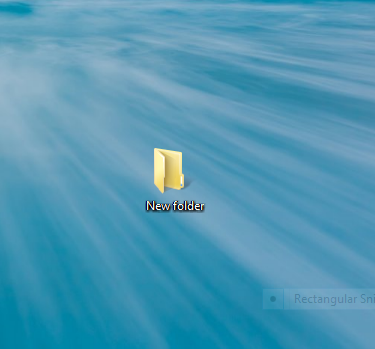
    1. First make a simple folder, just a simple folder which you usally make.

    New folder

    2. Right click on the folder and click Properties. You will see a new pop up window after clicking Properties.

    3. Switch to the customize tab now.

    Customize new folder

    4. Click on Change Icon.

    Change folder icon

    5. You will see lots of icons there. You have to find a transparent icon from there it is usually located in the middle. Click on the transparent icon the. click OK >> Apply and OK again.

    Transparent icons


    Here is a screenshot of how your new folder is looking now.

    Invisible folder


    You are almost done. :) But there is one thing left and that the name of the folder. It is still visible.  Now, it's time to make it invisible.

    6. Right click on the folder and click Rename. Press and hold the Alt key, now press "0160" and then leave the alt key. The folder name should be removed now.

    7. Make sure that your Num Lock key is on when when pressing 0160.

    Congratulations! you have done it. You can now save your secret files,passwords, email or anything which you want under this invisible folder.